
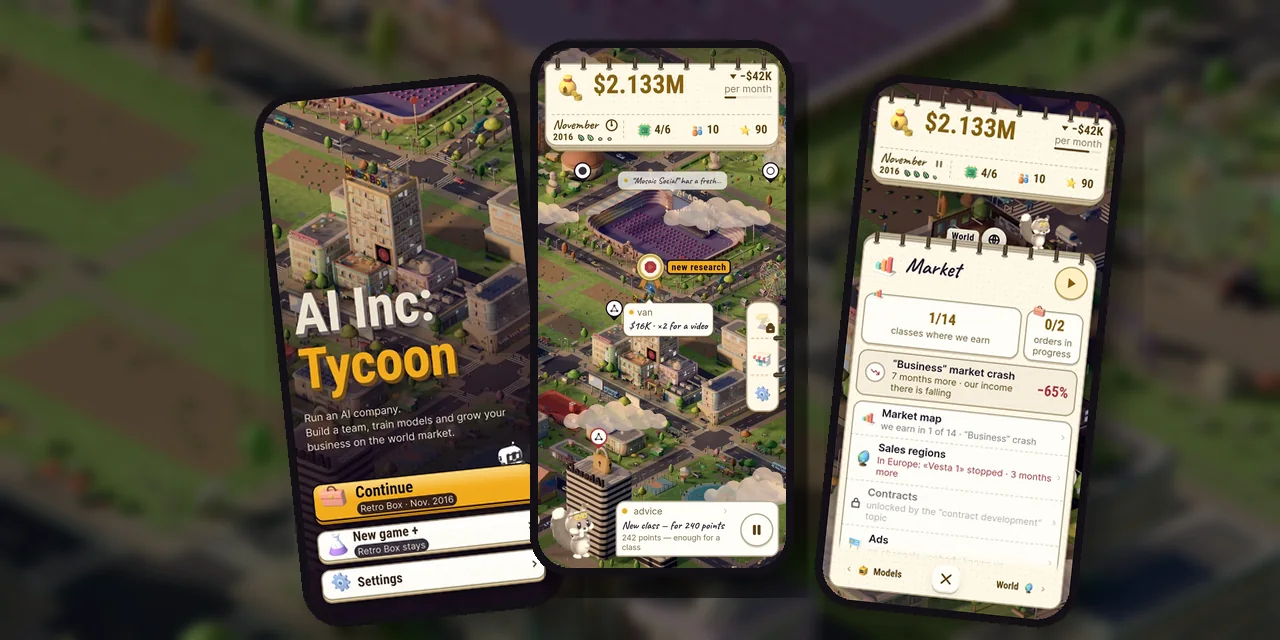
Google Play Closed Testing: 12 Testers for 14 Days
If your personal Google Play developer account was created after November 13, 2023, you can't publish your game right away. First you have to run Google Play closed testing: at least 12 testers who stay opted in for 14 days in a row. Only then can you apply for production access. This guide covers seven steps, from an empty test track to release. It's exactly how we shipped AI Inc: Tycoon.
In short:
- 12 testers × 14 consecutive days. Anyone who leaves and rejoins starts the count over.
- Recruit testers early: this is the longest part.
- Ship new builds during the test and log feedback, because the application asks about it.
- Review usually takes up to 7 days.
- Turn on managed publishing so you pick the release day yourself.
Who needs Google Play closed testing
The requirement applies to personal developer accounts created after November 13, 2023. Organization accounts are exempt, but they need company documents and a D-U-N-S number. The official rules are in the Google Play Console Help.
Step 1. Understand what Google actually counts
Google's wording is at least 12 testers who have been continuously opted in to the test for at least 14 days. In practice:
- a tester has to accept the invitation through the test link (opt in), not just appear on a list;
- the days are consecutive: if someone leaves the test and comes back, their count starts from zero;
- your app dashboard in Play Console shows how many testers are currently opted in. Check it every day.
Step 2. Use a Google Group instead of an email list
Link the closed test to a Google Group. New participants simply join the group, and you never have to add addresses to the console by hand. You can share the test link and the group link together in one message.
Step 3. Recruit 12 people, plus a buffer
Aim for 15–20, because someone will drop out. What works:
- Friends and family — your first 4–5 people.
- Test exchange communities. Developers test each other's games; you can add such a community's group to your test.
- Social media posts with an honest "looking for testers for a closed beta" and a link.
What not to do: don't buy testers and don't set up 12 accounts on one phone. Google also looks at how people actually played, so a fake test risks rejection.
Step 4. Make the test useful, not a formality
Testers are real players on real phones, and they find things automated tests miss. In our test, a player asked: "I have $4.7M, but a $4.4M model won't start — is that a bug?" It turned out the number in the game's header showed cash plus income that hadn't arrived yet. The next build showed the real cash balance.
What to do during those two weeks:
- push a new build to the test every few days and write release notes;
- add "where players get stuck" analytics, but only with the player's consent;
- log every piece of feedback and what you did about it: that's your ready-made answer for the application.
Step 5. Prepare everything for the production access application
- Data safety. The form must match the SDKs in your game: ads, analytics, purchases.
- Consent form for the EEA and the UK (UMP). Check that analytics doesn't turn on after "Do not consent". It's easy to miss: we found exactly this bug in our own game during the test.
- Privacy policy at a working URL, content rating, target audience, the "contains ads" declaration.
- Play App Signing and an AAB build with support for 16 KB memory pages.
- Store listing: icon, screenshots, short and full descriptions in every language you sell in.
Step 6. Apply for production
The "Apply for production" button unlocks on your app dashboard once the test requirement is met. The form has three parts:
- About the closed test: how easy it was to recruit testers, whether they tried all the features, what they said and how you collected feedback.
- About the game: who it's for, what value it offers and how many installs you expect in the first year.
- About readiness: what you changed after the test and how you decided the game was ready.
Be specific and give examples. "Testers found a cash display bug, and we fixed it in the next build" is more convincing than "we got lots of feedback". Google says reviews usually take up to 7 days. Ours was approved sooner.
Step 7. Release the game on your own day
Turn on "Managed publishing" in the Publishing overview. Then a release Google has approved doesn't go live on its own; it waits until you press "Publish". That way your launch lines up with your posts, website and in-game event, not with whatever minute the review happened to finish.
Checklist
- ✓ The test is linked to a Google Group.
- ✓ 15–20 people in the test, not exactly 12.
- ✓ New builds ship every few days.
- ✓ Feedback and changes are logged.
- ✓ Data safety, UMP consent and privacy policy are ready.
- ✓ Managed publishing is on.
FAQ
Can I update the game during the 14 days?
Yes. The count applies to testers, not builds. Update freely: it's exactly what shows Google you're acting on feedback.
Can I pass the test with 12 accounts on one phone?
We don't recommend it. Google also looks at how testers played, and says that with weak engagement you'll have to extend the test.
What if my application is rejected?
Google will tell you why. Most often it's too few testers or too little real play. In that case you extend the test and apply again.
How long should I plan from account to release?
Plan for about three weeks: a few days to recruit testers, 14 days of testing and up to a week for the application review.
Don't want to wrestle with the console yourself? We take games all the way to Google Play: from app signing and the consent form to the application and the store listing. More on our services page. For publishers and studios, see partnerships with companies.