
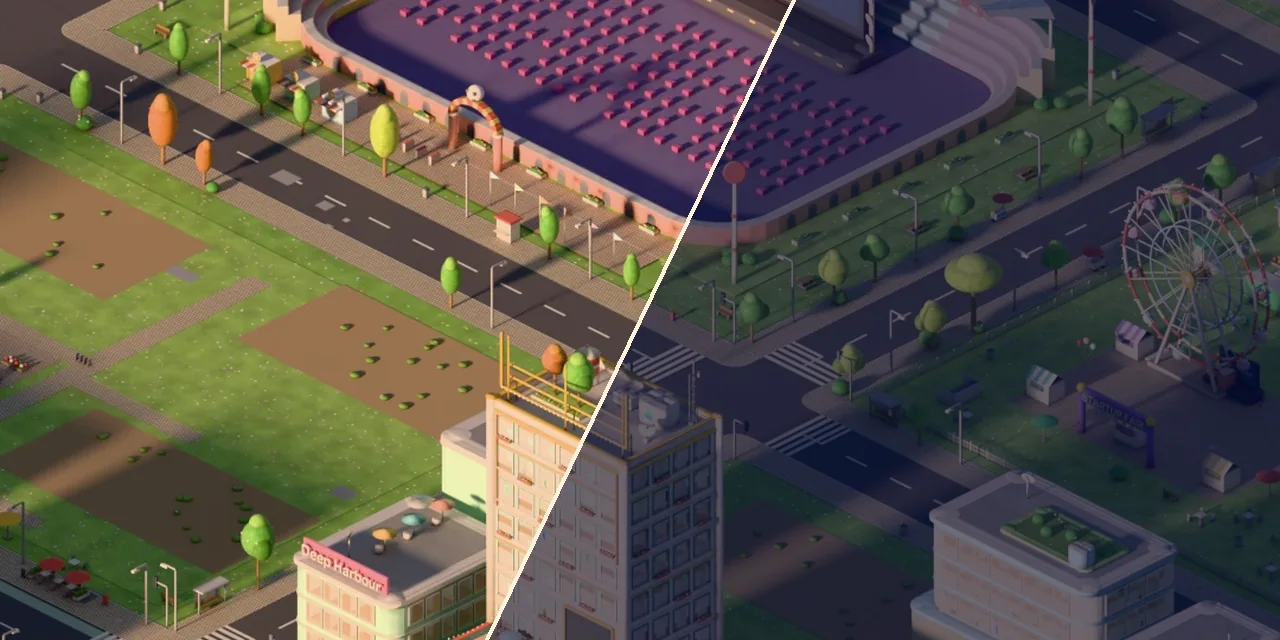
Isometric City in Blender: How We Set Camera and Light
An isometric city for a 2D game isn't one beautiful scene. It's hundreds of separate buildings that have to look as if they were shot in a single frame. The main thing we learned building an isometric city in Blender for AI Inc: Tycoon: the look isn't decided by small details, but by a handful of decisions at the start. How the camera sits, how Blender transforms color, where the light comes from and what "material" the city is made of. Below, we go through these decisions one by one: what we chose, why, and where we got it wrong.
In short:
- The camera is orthographic, in a 2:1 projection: that way buildings snap to the game grid without seams.
- Blender's default AgX view transform turns pastels gray. We switched to Khronos PBR Neutral.
- You light a single building and a whole city differently.
- The streets carry the city's contrast, not the buildings.
- The material is "clay", not plastic: matte, no shine, with soft bevels.
Which camera to use for an isometric game
We didn't go with "true" isometry but with 2:1 dimetric: the camera is tilted 60° and rotated 45°. Most isometric games do this, and the reason is practical. In a 2:1 projection a ground tile comes out exactly twice as wide as it is tall, in whole pixels. So every building, rendered separately, lands precisely on its tile in the game. In "true" isometry the tile height is fractional, and after a few dozen buildings seams start to appear between them.
The floor height follows from the same decision. We chose it so that one floor takes up exactly half a tile in the frame. That way buildings of 3, 5 or 12 floors stand side by side evenly, with no jagged rooflines.
⚠️ A mistake that cost us time: in a portrait frame, Blender by default fits the camera scale to the longer side. Our buildings suddenly came out one and a half times bigger than they should have been. Check which side the camera uses to fit the frame.
Why a pastel city in Blender comes out gray
We wanted a light city: almost-white walls, mint roofs, pastel accents. The first render came out a muddy gray. The cause wasn't the lighting or the materials, but the AgX view transform, which Blender turns on by default since version 4.0. It dulls bright colors, and in a light scene almost everything is bright.
We compared the options on the same wall and roof:
- AgX — the wall is noticeably darker, and the mint loses more than two-thirds of its saturation;
- Filmic — a bit better, but the mint is still washed out;
- Standard — accurate colors, but overexpose the scene slightly and the white wall melts into a shapeless blob;
- Khronos PBR Neutral — colors almost exactly as intended, and the highlights don't blow out.
We chose Khronos PBR Neutral. Tip: if your pastel render looks gray, check the view transform first and the lighting second.
How to light a single building
For a single building that will later become a sprite in the game, we set up the light like a photo studio for architectural models:
- the sky is a flat light color, not an HDRI panorama. An HDRI brings a harsh sun and someone else's color cast with it, and near-white walls are the first place it shows;
- the key light is very large and soft, several times bigger than the building itself. The bigger the source, the softer the shadow: no hard shadow edge anywhere;
- the fill light comes from the opposite side, about half as strong as the key. When the shadow sides felt gloomy, that's the one we raised.
The biggest trap is the sun. With default settings it casts a razor-sharp shadow, and after that even the best materials look "cheap".
Why lighting an isometric city in Blender is different
The studio setup worked beautifully on one building and fell apart on a whole city. A large soft light only lights what's under it. On a wide city tile you can see a light boundary beyond its edge: one part of the block is bright, the neighboring part noticeably darker.
For the city we switched to a sun, but with a blurred disc of about 3°. The shadow stayed soft, and the light became even across the whole tile, no matter how big the city gets.
The second discovery: the streets carry the city's contrast, not the buildings. In the first version the ground under the buildings was almost as light as the walls, and the whole block merged into white. We rebuilt the values:
- walls — the lightest thing in the frame;
- asphalt — the darkest;
- sidewalks and lawns — in between, noticeably darker than the walls.
After that the city reads even in a small phone frame: dark streets draw the grid, and the buildings glow on top of it.
What the city is "made of": material and form
We wanted the city to look like an architectural clay model, not a plastic toy. These are the decisions that get you there:
- walls aren't pure white but slightly grayish. Pure white has nowhere to darken in shadow, and the building's form disappears;
- the same roughness on everything. When every material has its own roughness, the city falls apart into "assembled from different kits";
- specular removed separately. Roughness alone doesn't get rid of it; it just smears it into a wide blob;
- soft bevels on every edge. A thin bevel catches the light, and a box reads as cast clay;
- round shapes with lots of segments. Under soft light with no textures, every facet of a cylinder shows;
- glass and solar panels are matte. The instinct is to make them glossy — and that shine is exactly what breaks the whole style;
- color saturation is restrained. We get variety from hue, not brightness.
⚠️ A modeling mistake: at first we made roads and crosswalks as thin slabs. The bevel turned out thicker than the slab itself, and black triangles appeared in the frame. Road markings and lawns are now flat planes: no artifacts, and lighter too.
One more observation: you can recolor and relight ready-made model kits, but that doesn't change the architecture. Toy proportions, faceted cylinders and oversized details stay. We took small props off the shelf and modeled the key buildings ourselves.
How to render buildings for a game
Every building in the game is a separate image with a transparent background and a soft shadow on the ground. That leads to two decisions:
- Cycles, not EEVEE. EEVEE can't keep a soft shadow on a transparent background. Cycles is several times slower, but rendering all the buildings takes one night that passes without us.
- No denoiser. It cleans noise nicely, but it smears transparency too: a barely visible haze settles around the building, and in the game you see a pale frame. Without the denoiser we simply render with more samples, around 128 for daytime. Night scenes with dark cobblestones need more.
The last rule: one light for the whole city, locked once and for all. The moment someone "tweaks the lamp a little" for one building, the city stops looking like it was shot in a single frame.
Artist's checklist
- ✓ Orthographic camera, 2:1; floor height is half a tile.
- ✓ View transform is not AgX.
- ✓ A building gets a large soft light; the city gets a sun with a blurred disc.
- ✓ Streets darkest, walls lightest.
- ✓ Matte "clay", bevels, no shine on glass or panels.
- ✓ Markings and lawns are planes, not slabs.
- ✓ Cycles, transparent background, no denoiser.
- ✓ Lighting locked for the whole city.
FAQ
EEVEE or Cycles for isometric sprites?
If you need transparency with a soft shadow under the building, Cycles. For opaque backgrounds EEVEE may be enough, and it's much faster.
Why not an HDRI for the sky?
An HDRI brings a baked-in sun and a color cast. On near-white walls that's the first thing you notice. A flat sky color gives calm light that falls the same way on every building.
Can you build the city from ready-made kits?
Props, yes: benches, street lamps, trees. Key buildings are better modeled yourself, because relighting doesn't fix proportions.
How long does a city like this take?
Setting up the camera, color and lighting takes a few days if you know the traps in advance. The models take the longest: each new building type takes hours, and the city is made of dozens of them.
Need isometric buildings, a city or sprites for your game? We model in Blender and keep the whole set in one style, so new buildings drop into the city without seams. More on our services page, and for studios and publishers, see partnerships with companies. How a city like this works inside the game itself is covered in our guide Flutter game performance.